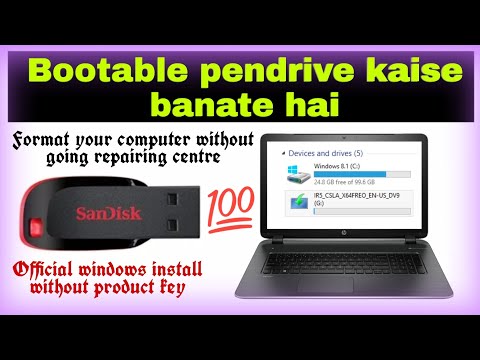
How to make a bootable usb pendrive for windows 8.1:
Here are all necessary components:
◆ Rufus file~https://drive.google.com/file/d/1JKDiCcHe9zOjm5-M5di52xjCrpqLdkP6/view?usp=drivesdk
◆ PID file~https://drive.google.com/file/d/1IbPTh5MI5KBnD15hChDcl56aWKdj5JBP/view?usp=drivesdk
◆ ISO file~https://www.microsoft.com/en-in/software-download/windows8ISO
Here are some steps that you can follow:
◆ First download three files: 1. Rufus, 2. ISO file, 3. PID file
◆ All files are given above
◆ Next format your usb pendrive with NTFS file system
◆ Open Rufus file, Select device(pendrive), next select iso file, next select partition scheme according to your pc, next click on start
◆ Wait for 10 to 15 minutes
◆ Your pendrive will be ready for install windows
◆ But if you install with it now, then there you will see for a product key
◆ To pass this product key, need PID file
◆ You simply open your pendrive and here you will see a 'sources' folder
◆ You just paste it in this folder
◆ Now if you go for installation, there will not appear for product key
◆ Finally you smile and enjoy
#bootable_pendrive
Important fact about PID:
▪ Visit official page to know more about PID file: https://docs.microsoft.com/en-us/windows-hardware/manufacture/desktop/windows-setup-edition-configuration-and-product-id-files--eicfg-and-pidtxt
Here are all necessary components:
◆ Rufus file~https://drive.google.com/file/d/1JKDiCcHe9zOjm5-M5di52xjCrpqLdkP6/view?usp=drivesdk
◆ PID file~https://drive.google.com/file/d/1IbPTh5MI5KBnD15hChDcl56aWKdj5JBP/view?usp=drivesdk
◆ ISO file~https://www.microsoft.com/en-in/software-download/windows8ISO
Here are some steps that you can follow:
◆ First download three files: 1. Rufus, 2. ISO file, 3. PID file
◆ All files are given above
◆ Next format your usb pendrive with NTFS file system
◆ Open Rufus file, Select device(pendrive), next select iso file, next select partition scheme according to your pc, next click on start
◆ Wait for 10 to 15 minutes
◆ Your pendrive will be ready for install windows
◆ But if you install with it now, then there you will see for a product key
◆ To pass this product key, need PID file
◆ You simply open your pendrive and here you will see a 'sources' folder
◆ You just paste it in this folder
◆ Now if you go for installation, there will not appear for product key
◆ Finally you smile and enjoy
#bootable_pendrive
Important fact about PID:
▪ Visit official page to know more about PID file: https://docs.microsoft.com/en-us/windows-hardware/manufacture/desktop/windows-setup-edition-configuration-and-product-id-files--eicfg-and-pidtxt
- Категория
- Установка Windows

Комментариев нет.
Следующее
-
07:32

How To Install Windows Using Pendrive - How To Make Bootable USB in Urdu / Hindi
-
14:41
How to Make Bootable Pendrive for Windows 10[MR Production]
-
04:43
How To Make Bootable Pendrive , How To make bootable usb windows 10
-
04:50
HOW TO MAKE WINDOW BOOTABLE PENDRIVE | VIVEK YADAV OFFICIAL | IN HINDI
-
05:02
How to install Window using Pendrive | Make Pendrive Bootable in Bengali
-
09:08
Make Bootable Pendrive in Two Minutes | How install windows 10 using CMD |Bootable pendrive Banaye
-
04:14
How to make bootable pendrive for windows 10 installation
-
03:39
How to make pendrive bootable for intsalling windows
-
03:36
How to make a windows 10 bootable USB drive | Make a bootable Pendrive for windows 10-2020 (Hindi)
-
04:35
Bootable Pendrive kaise bnaye 2020 |How to install Windows using pendrive | Make pendrive bootable
-
04:12

Почему экран iPhone долго отключается при блокировке?