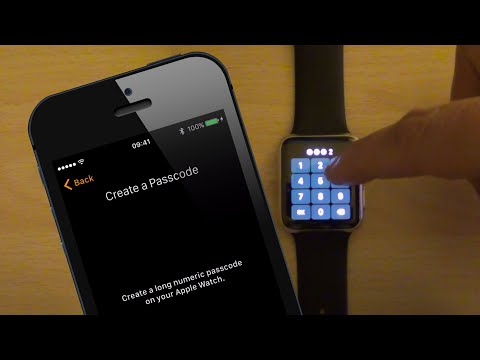
What To Do If Forgotten Apple Watch Passcode and Restore from a Backup. How To Reset Apple Watch Forgotten Passcode and Restore from a Backup. Reset Apple Watch OS Password
Apple Watch S1 Ep1: https://youtu.be/bbll43T4Anw
Apple Watch S1 Ep2: https://youtu.be/mS_uA_eyCsk
Apple Watch S1 Ep3: This Episode
Beats by: Joakim Karud: https://soundcloud.com/joakimkarud/keep-on-going
(licensed under a Creative Commons License)
SUBSCRIBE For More Videos Like This:http://goo.gl/88PNgx
*Buy on Amazon*
(affiliate links):
My MAIN Camera: https://amzn.to/2OBWusS
External Dummy Battery for Camera: https://amzn.to/2RLgNGr
Backup Power Bank I use: https://amzn.to/2RLe8MX
ND Filter I use: https://amzn.to/2OyY8eI
The Camera Mic I use: https://amzn.to/2JRjK5s
My Lapel Mic: https://amzn.to/2JSE4mQ
Must have Gadget for Recording HDMI Output: https://amzn.to/2Dslv93
Get those crisp overhead shots with this tripod: https://amzn.to/2PIOcnV
Versatile Super Tripod Clamp: https://amzn.to/2DvXPk2
Mini Tripod I use: https://amzn.to/2PNePrx
My iPhone Tripod Mount: https://amzn.to/2DvD8Vh
LED Spot Lighting I use: https://amzn.to/2JSDZjd
LED Wide Angle Lighting: https://amzn.to/2Dvuu9w
My Scenery LED Kit: https://amzn.to/2DtVjKZ
My Storage Devices
(affiliate links):
For Video Editing SSD: https://amzn.to/2PMRhTD
USB 3.0 SSD External Enclosure I use: https://amzn.to/2DvDoUf
USB 3.0 Flash Drive I use: https://amzn.to/2SXu4wU
My High Speed Camera Card: https://amzn.to/2Fanhxe
External Storage Drive I use USB Version: https://amzn.to/2JUlWta
External Storage Drive Thunderbolt & USB Version: https://amzn.to/2RIZ82c
Follow me on:
http://instagram.com/sergesiou
https://twitter.com/SergeSiou
Performed and Tested On Apple Watch Stainless Steel 42mm Case Model WatchOS 2.2 and iPhone 5s iOS 9.3.1
TRANSCRIPT:
/2016/05/reset-apple-watch-forgotten-passcode.html
This is episode 3 from our Apple Watch series.
We’ve already shown in episode 1, what happens if you attempt to enter the wrong passcode 10 times in a row on the Apple Watch.
And from episode 2, how Apple Watch backs up your data data.
In this episode, we’ll show what to do if you’ve forgotten your Apple Watch passcode and how to restore your Apple Watch from a Backup.
Therefore, if you’ve forgotten your Apple Watch passcode, you basically have two Options.
Option 1, requires that you have your paired iPhone and Apple Watch nearby.
And Option 2, requires you have your Apple Watch and it’s magnetic USB charger, when the iPhone is either turned off or not nearby.
Time for a Demo. Soooooooo, Let's Get Started.
So, considering Option 1, simply open the Watch app on your iPhone, then tap on General and scroll down and tap Reset.
Now, tap on Erase Apple Watch Content and Settings, then tap Erase All Content and Settings to confirm.
You’ll then be asked to enter your Apple ID password.
After entering your Apple ID password, the process of unpairing your Apple Watch will begin.
I’ll just time-lapse the erasing process from here.
After the unpairing process has finished on your Apple Watch and has mentioned in episode 2, a backup is created on your iPhone.
Now tap your language of choice on the Apple Watch and tap Start pairing on the iPhone, and hold the iPhone over the Apple Watch animation, as shown.
You’re then given the option to Restore from Backup or Set Up as New Apple Watch.
Choose Restore from Backup and select the Backup you want to restore, you’ll then be asked for your Apple ID password.
After entering your Apple ID password, and like before, when setting up a new Apple Watch, you’ll have the option to create a new short or long passcode, choose to unlock your Apple Watch using your iPhone and to set up Apple Pay if required.
Again; I’ll just time-lapse the process from here.
And that concludes Option 1.
Let’s now look at Option 2, where your paired iPhone is not close by or turned off. We’ll consider the case that the iPhone is turned off.
Therefore; with the iPhone turned off, connect the magnetic USB charger cable to the Apple Watch, then press and hold down the side button, shown here.
Now, firmly press and release the Power Off slider, until you see the following.
Then, tap on Erase all content and settings.
I found this to be a bit tricky, took several tries, till I got the hang of it.
I'll just time-lapse the erasing process from here.
Once the erase process has finished on the Apple Watch, it’s IMPORTANT to unpair the current Apple Watch shown on the iPhone, once it’s turned back on.
Therefore, with the iPhone turned back on, simply open the Watch app and tap on the Apple Watch icon. Then, tap on the “i” icon, shown here and select unpair.
Once the unpairing has finished, follow the same process as was done in Options 1 when selecting your language of choice from the Apple Watch and restoring from a Backup.
Apple Watch S1 Ep1: https://youtu.be/bbll43T4Anw
Apple Watch S1 Ep2: https://youtu.be/mS_uA_eyCsk
Apple Watch S1 Ep3: This Episode
Beats by: Joakim Karud: https://soundcloud.com/joakimkarud/keep-on-going
(licensed under a Creative Commons License)
SUBSCRIBE For More Videos Like This:http://goo.gl/88PNgx
*Buy on Amazon*
(affiliate links):
My MAIN Camera: https://amzn.to/2OBWusS
External Dummy Battery for Camera: https://amzn.to/2RLgNGr
Backup Power Bank I use: https://amzn.to/2RLe8MX
ND Filter I use: https://amzn.to/2OyY8eI
The Camera Mic I use: https://amzn.to/2JRjK5s
My Lapel Mic: https://amzn.to/2JSE4mQ
Must have Gadget for Recording HDMI Output: https://amzn.to/2Dslv93
Get those crisp overhead shots with this tripod: https://amzn.to/2PIOcnV
Versatile Super Tripod Clamp: https://amzn.to/2DvXPk2
Mini Tripod I use: https://amzn.to/2PNePrx
My iPhone Tripod Mount: https://amzn.to/2DvD8Vh
LED Spot Lighting I use: https://amzn.to/2JSDZjd
LED Wide Angle Lighting: https://amzn.to/2Dvuu9w
My Scenery LED Kit: https://amzn.to/2DtVjKZ
My Storage Devices
(affiliate links):
For Video Editing SSD: https://amzn.to/2PMRhTD
USB 3.0 SSD External Enclosure I use: https://amzn.to/2DvDoUf
USB 3.0 Flash Drive I use: https://amzn.to/2SXu4wU
My High Speed Camera Card: https://amzn.to/2Fanhxe
External Storage Drive I use USB Version: https://amzn.to/2JUlWta
External Storage Drive Thunderbolt & USB Version: https://amzn.to/2RIZ82c
Follow me on:
http://instagram.com/sergesiou
https://twitter.com/SergeSiou
Performed and Tested On Apple Watch Stainless Steel 42mm Case Model WatchOS 2.2 and iPhone 5s iOS 9.3.1
TRANSCRIPT:
/2016/05/reset-apple-watch-forgotten-passcode.html
This is episode 3 from our Apple Watch series.
We’ve already shown in episode 1, what happens if you attempt to enter the wrong passcode 10 times in a row on the Apple Watch.
And from episode 2, how Apple Watch backs up your data data.
In this episode, we’ll show what to do if you’ve forgotten your Apple Watch passcode and how to restore your Apple Watch from a Backup.
Therefore, if you’ve forgotten your Apple Watch passcode, you basically have two Options.
Option 1, requires that you have your paired iPhone and Apple Watch nearby.
And Option 2, requires you have your Apple Watch and it’s magnetic USB charger, when the iPhone is either turned off or not nearby.
Time for a Demo. Soooooooo, Let's Get Started.
So, considering Option 1, simply open the Watch app on your iPhone, then tap on General and scroll down and tap Reset.
Now, tap on Erase Apple Watch Content and Settings, then tap Erase All Content and Settings to confirm.
You’ll then be asked to enter your Apple ID password.
After entering your Apple ID password, the process of unpairing your Apple Watch will begin.
I’ll just time-lapse the erasing process from here.
After the unpairing process has finished on your Apple Watch and has mentioned in episode 2, a backup is created on your iPhone.
Now tap your language of choice on the Apple Watch and tap Start pairing on the iPhone, and hold the iPhone over the Apple Watch animation, as shown.
You’re then given the option to Restore from Backup or Set Up as New Apple Watch.
Choose Restore from Backup and select the Backup you want to restore, you’ll then be asked for your Apple ID password.
After entering your Apple ID password, and like before, when setting up a new Apple Watch, you’ll have the option to create a new short or long passcode, choose to unlock your Apple Watch using your iPhone and to set up Apple Pay if required.
Again; I’ll just time-lapse the process from here.
And that concludes Option 1.
Let’s now look at Option 2, where your paired iPhone is not close by or turned off. We’ll consider the case that the iPhone is turned off.
Therefore; with the iPhone turned off, connect the magnetic USB charger cable to the Apple Watch, then press and hold down the side button, shown here.
Now, firmly press and release the Power Off slider, until you see the following.
Then, tap on Erase all content and settings.
I found this to be a bit tricky, took several tries, till I got the hang of it.
I'll just time-lapse the erasing process from here.
Once the erase process has finished on the Apple Watch, it’s IMPORTANT to unpair the current Apple Watch shown on the iPhone, once it’s turned back on.
Therefore, with the iPhone turned back on, simply open the Watch app and tap on the Apple Watch icon. Then, tap on the “i” icon, shown here and select unpair.
Once the unpairing has finished, follow the same process as was done in Options 1 when selecting your language of choice from the Apple Watch and restoring from a Backup.
- Категория
- Как сбросить apple watch

Комментариев нет.
Следующее
-
02:01

Apple Watch Series 3 and 4 say Too Many Passcode Attempts Reset Apple Watch and Pair again watchOS 6
-
01:46
Как правильно сбросить пароль от Apple ID. How to reset Apple ID password
-
02:23
How Reset Apple Watch 4 WatchOS 7 فورمات ساعة ابل
-
03:36
How to Reset Apple ID Password
-
03:59
Apple Watch How to Reset forgot password, screen lock... HARD RESET
-
05:53
***How To Reset Apple MacBook Without Password!!!!!!!***
-
05:53
***How To Reset Apple MacBook Without Password!!!!!!!***
-
01:54
How to Reset Your Apple ID Password on iOS 2018
-
18:19
Главная проблема watchOS 7 для Apple Watch. БОЛЬШОЙ и полный обзор watchOS 7! Чего нас скоро лишат?
-
00:45
How to reset your Apple ID password on your iPhone, iPad, or iPod touch — Apple Support
-
04:12

Почему экран iPhone долго отключается при блокировке?